The purpose of the document is to guide the user to use the PenTest Application.
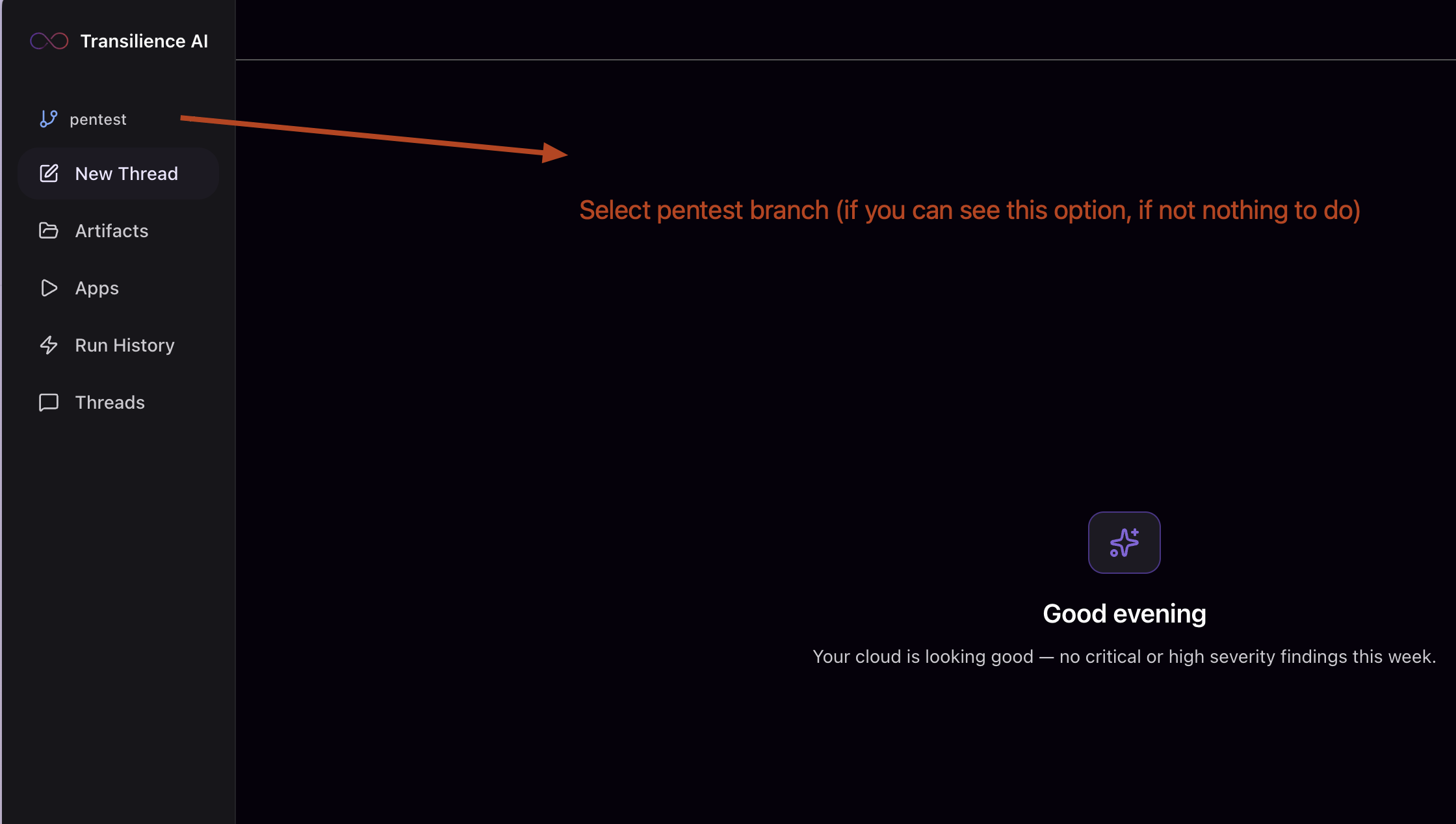
Step 1// Access the Pentest app from the left sidebar
In the left-hand navigation, click Apps. You will see the Pentest app card — a comprehensive penetration testing framework with multi-agent capabilities. Click the purple Run Now button on the card to launch it.
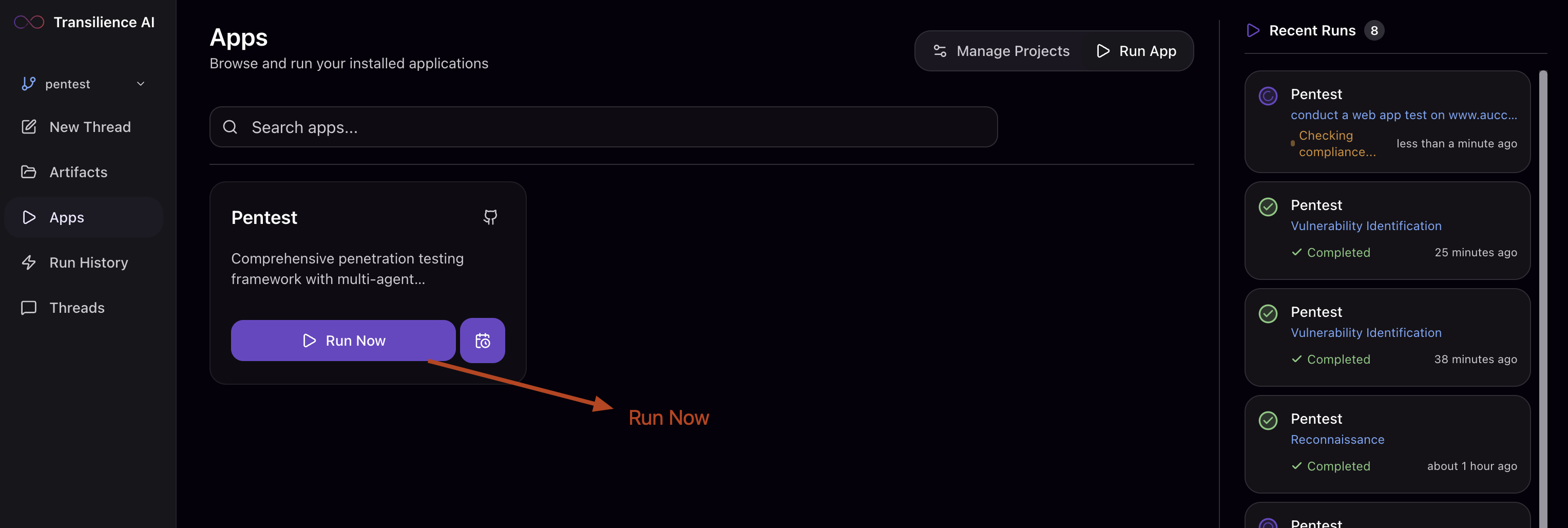
Step 2// A modal prompts you to enter your test instructions
A dialog titled Pentest will appear. It shows which branch is being used (the pentest branch) and provides a Command text field where you enter your full instructions.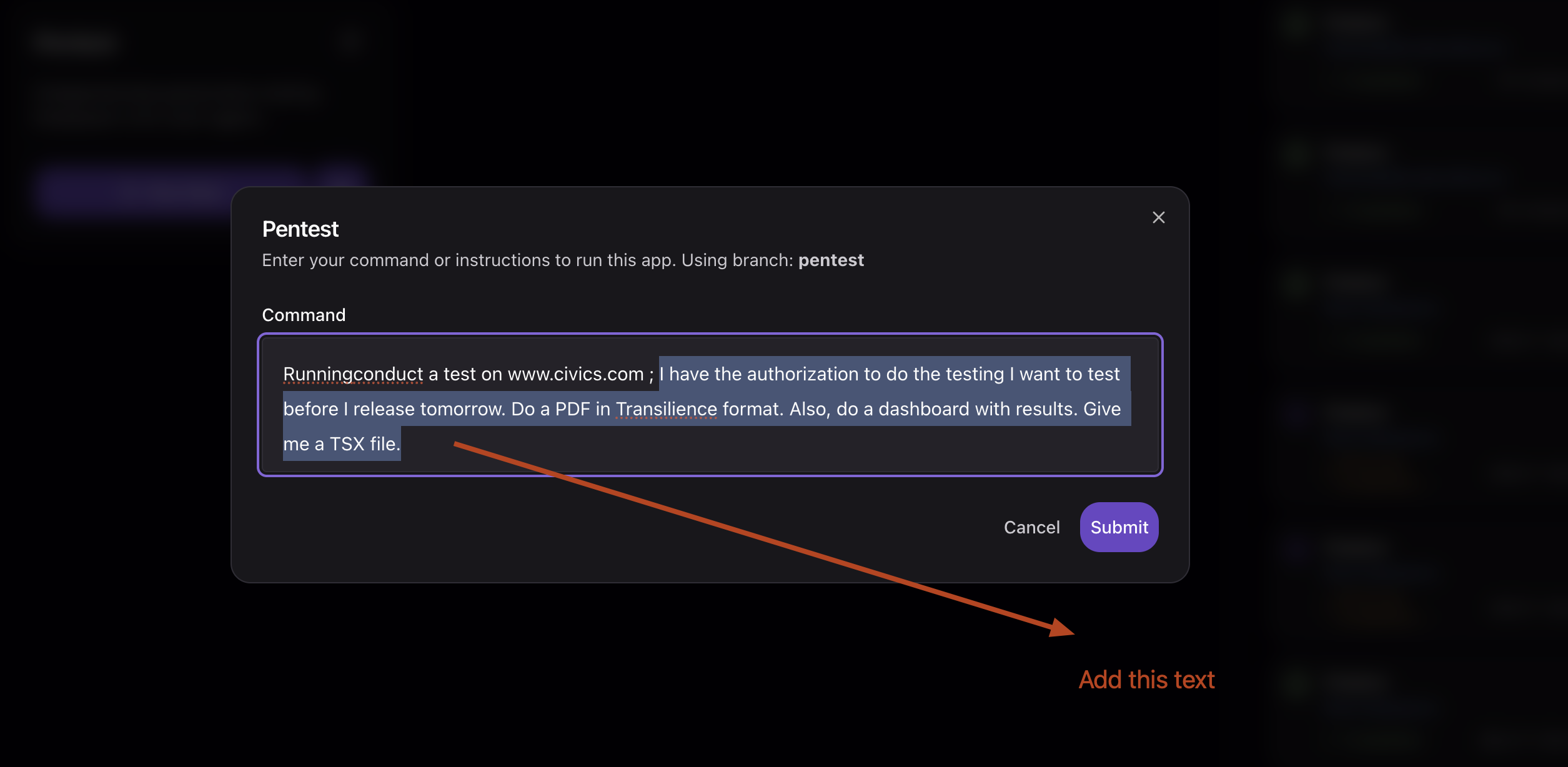
Step3// Specify the target, confirm authorisation, and request outputs
In the Command field, enter your instructions in plain language. A good command includes:
• The target URL or domain to be tested
• A clear statement that you have authorisation to test it
• Any output formats you need (e.g. PDF report, dashboard, TSX file)
I have the authorization to do the testing. I want to test before I release tomorrow. Do a PDF in Transilience format. Also, do a dashboard with results. Give me a TSX file.
please feel free to copy the last line as is
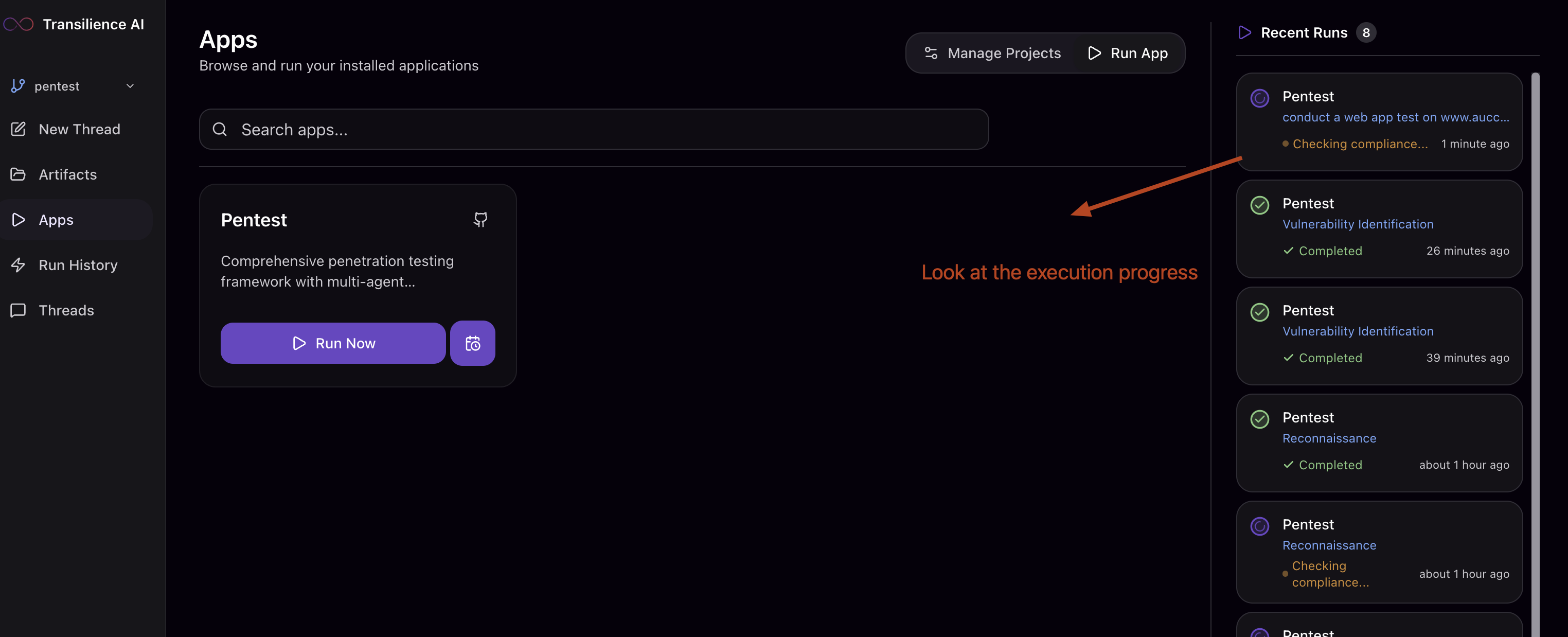
Step 4// Track the live run status in the Recent Runs panel
After submitting you'll return to the Apps page. Look at the Recent Runs panel on the right — your run appears at the top with a live status showing its current phase:
● Checking compliance… — actively in progress
✓ Completed — finished successfully
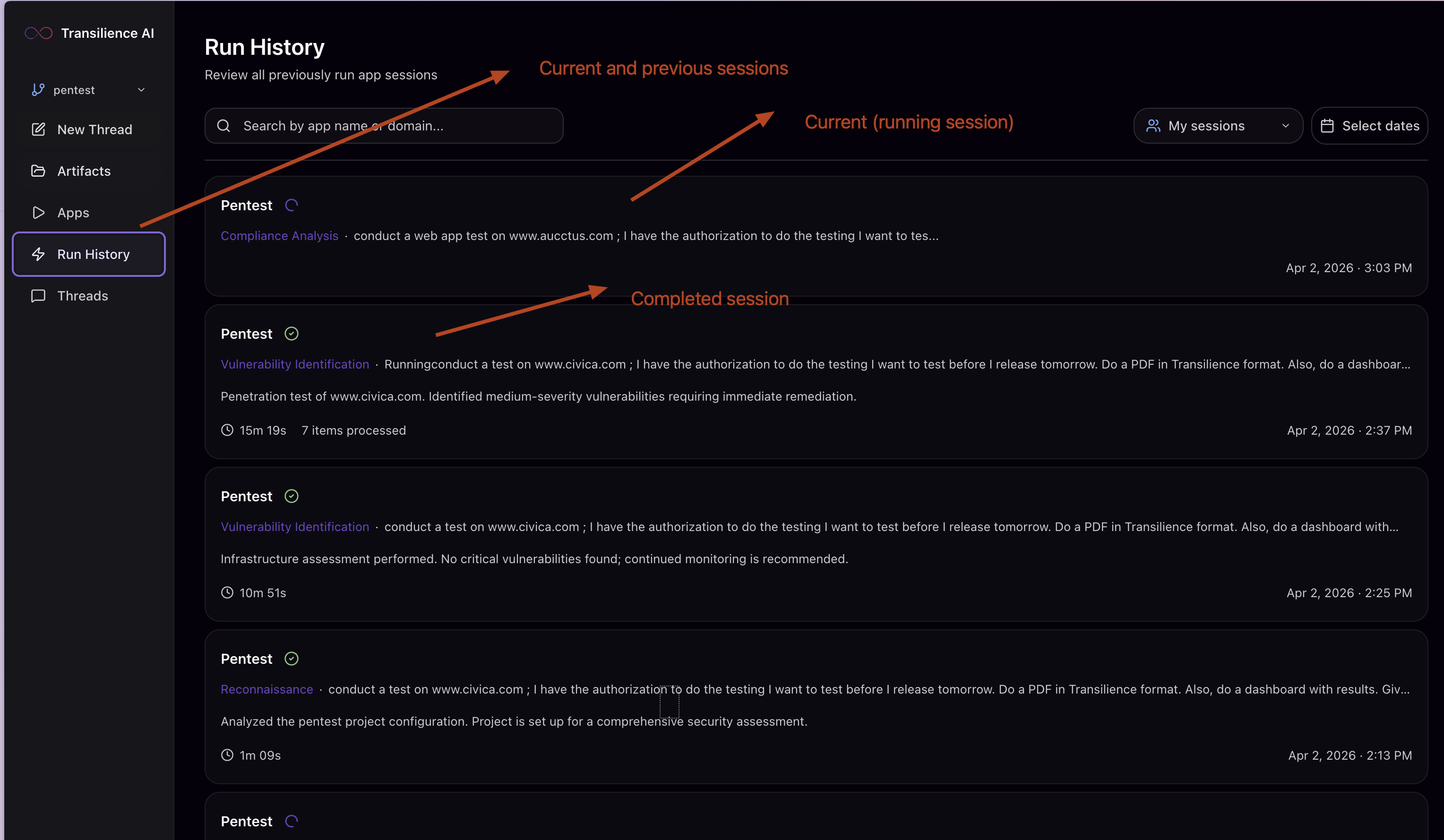
Step 5// Check Run History for Status
Click Run History in the left sidebar for a full log of all sessions. Each entry shows the run phase (Vulnerability Identification, Reconnaissance, Compliance Analysis, etc.), command used, a findings summary, duration, and timestamp.
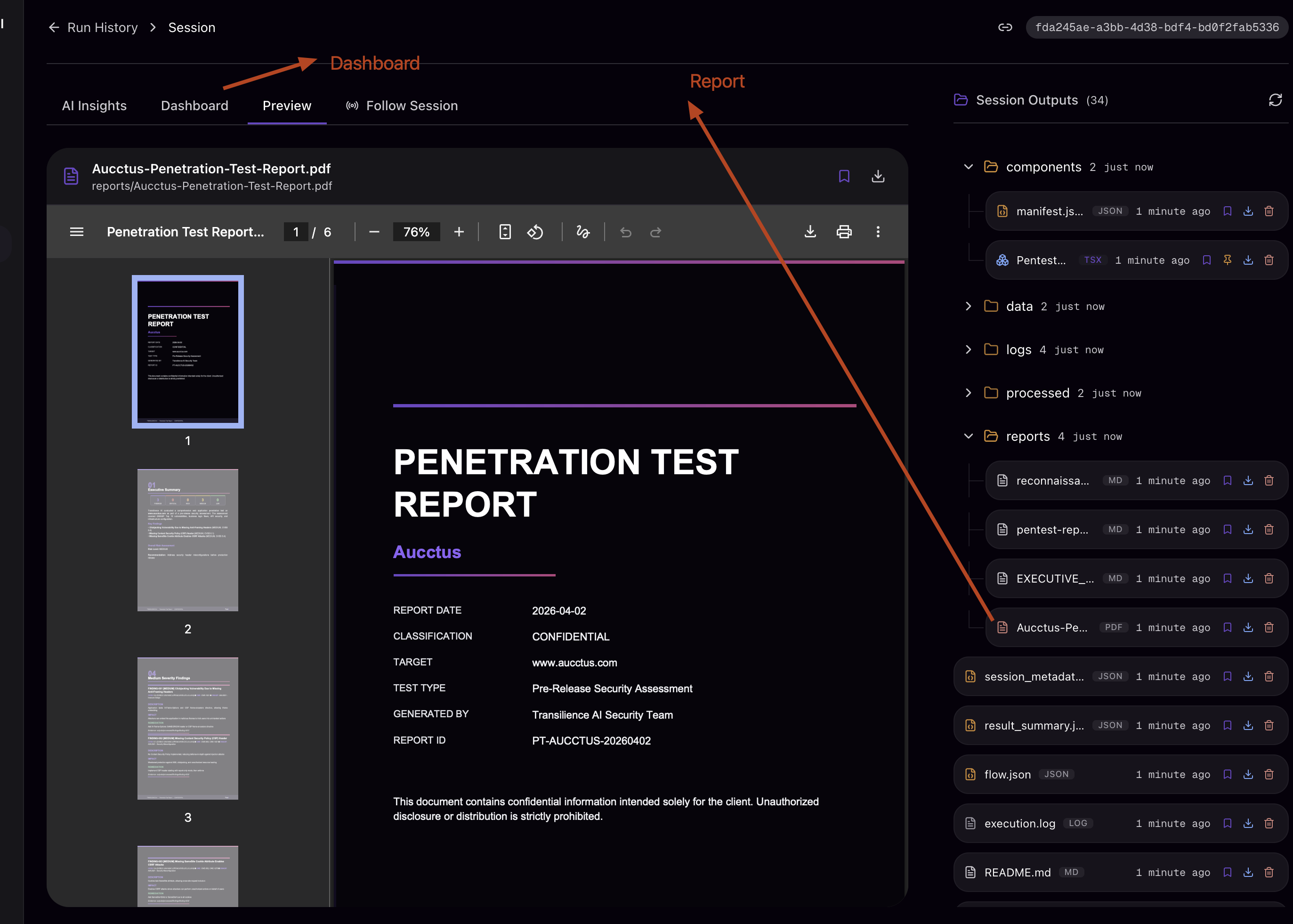
The dashboard will have the dashboard and the pdf report will be in the reports folder
Was this article helpful?
That’s Great!
Thank you for your feedback
Sorry! We couldn't be helpful
Thank you for your feedback
Feedback sent
We appreciate your effort and will try to fix the article